Guru2 imports Operational Flight Plans
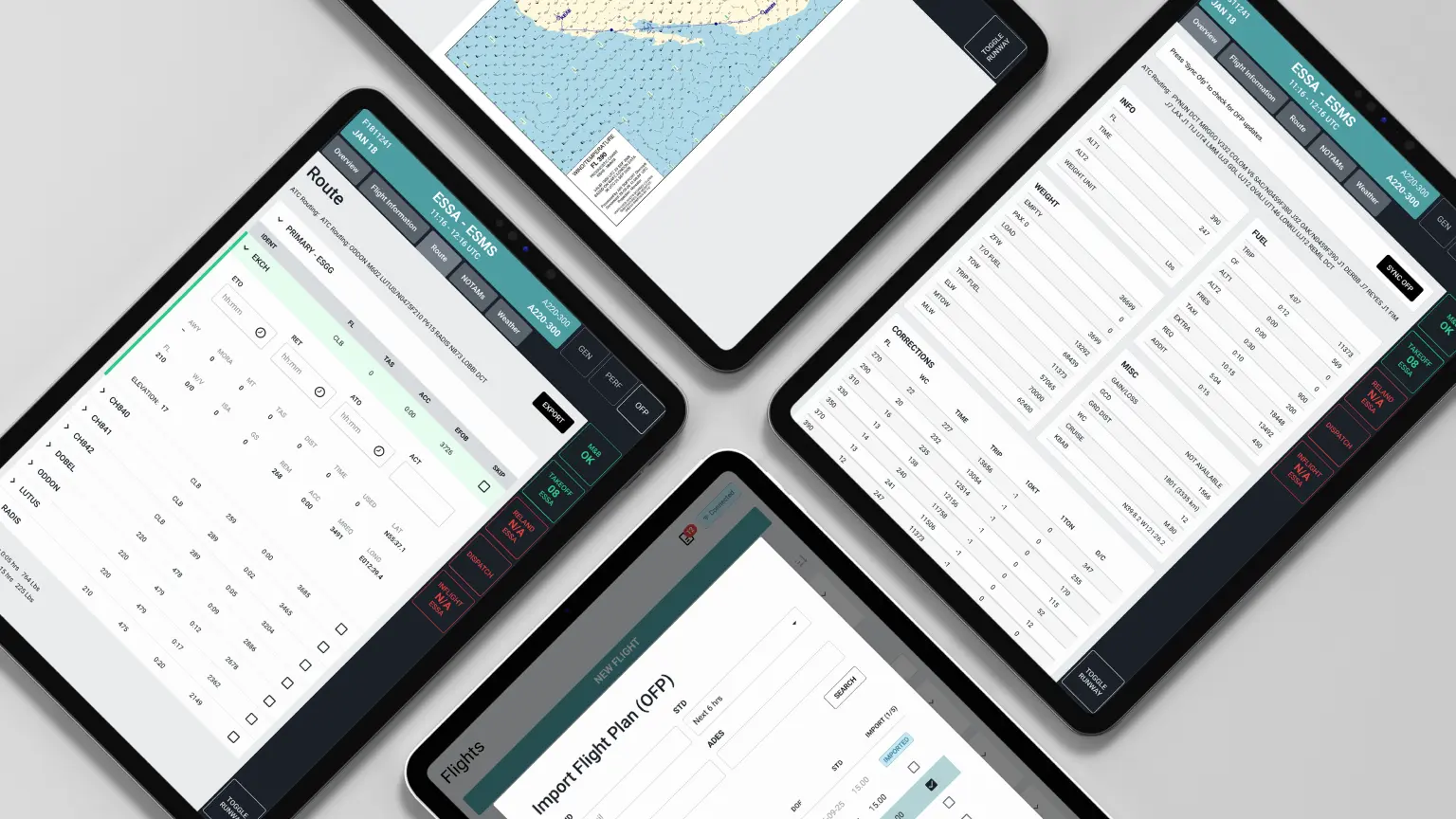
For most crews, the Operational Flight Plan sits in one place and the performance numbers sit in another. With Guru2 3.14, Flygprestanda brings the two together. Pilots can now import their Operational Flight Plan into Guru2, alongside their Mass & Balance and aircraft performance calculations.
What is an Operational Flight Plan (OFP)?
The OFP is the pilot’s main document for a flight. It sets out the planned route, flight level, fuel, timings, alternates, weather and NOTAMs. Crews use it to prepare before departure and work from it in the air.
Until now, that information usually lived outside the performance tool. Pilots moved between apps, printouts and PDFs to get the full picture.
How OFP works in Guru2
Getting a flight plan into Guru2 takes a few taps. From the flight list, pilots search by tail, date or airport and import flight plans. Each one appears as a flight marked with an OFP label, ready for performance calculations.
Once imported, the OFP has its own section in the app, alongside the performance tabs:
- Overview. The key figures at the top: ATC routing, flight level, fuel requirements, weights and distance.
- Flight Information. The full flight information document, including the route drawn on a map.
- Route. Every waypoint with flight level, time and estimated fuel on board. The primary route and alternates are shown separately.
- NOTAMs. Grouped by departure, destination, alternates and Flight Information Regions (FIRs), so pilots can quickly find what applies to them.
- Weather. METAR, TAF and SIGMET, plus Wind Aloft, Cross Section and Significant Weather (SIG WX) charts.
If something changes before departure, pilots sync the flight plan to get the latest version and updated weather charts.
Tracking the flight, waypoint by waypoint
In the air, the route becomes a working log. For each waypoint, pilots can record Estimated Time Over (ETO), Revised Estimated Time (RET), Actual Time Over (ATO) and Actual Consumption (ACT). Waypoints that aren’t flown can be skipped.
The values are sent to Guru2 BackOffice with the flight record. Route data is also exported automatically when the flight is approved, so the operator has a complete record without extra paperwork.
One EFB on iPad, Windows and web
Guru2 runs on iPad, Windows tablets and in a web browser, and OFP is available on all three. Pilots no longer need a separate app for route, weather and NOTAMs. It’s all in Guru2, next to the takeoff and landing numbers they already rely on.
Available through customer configuration
OFP is set up per customer. Flygprestanda configures it to match each operator’s flight planning setup, so the feature appears in Guru2 once it’s enabled for that organisation. Operators who want to start using OFP can contact Flygprestanda to get it set up.
Published on: October 16, 2026